Messenger boundaries
LINE ID tracking: what an account can and cannot show
An ad promises a view into someone's LINE. LINE's Help Center answers it with three mechanics you can test yourself: Letter Sealing on your chats, the Devices list on your main phone, and the Allow login switch for PC and iPad.
- 7–9 min read
- Verified October 2026
- Free guide, no account
Which LINE promise are you looking at? Choose what the seller promised; each answer quotes LINE's Help Center.
State 1 of 5
LINE says its own servers cannot.
LINE says that in chats where Letter Sealing is shown as enabled, LINE servers cannot view the contents under any circumstances. Message content is also saved in an encrypted state on the server. A third party has even less to work with than LINE does.
Do thisTreat an outside promise to read Letter Sealing chats as false.
State 2 of 5
That is a logged-in sub device.
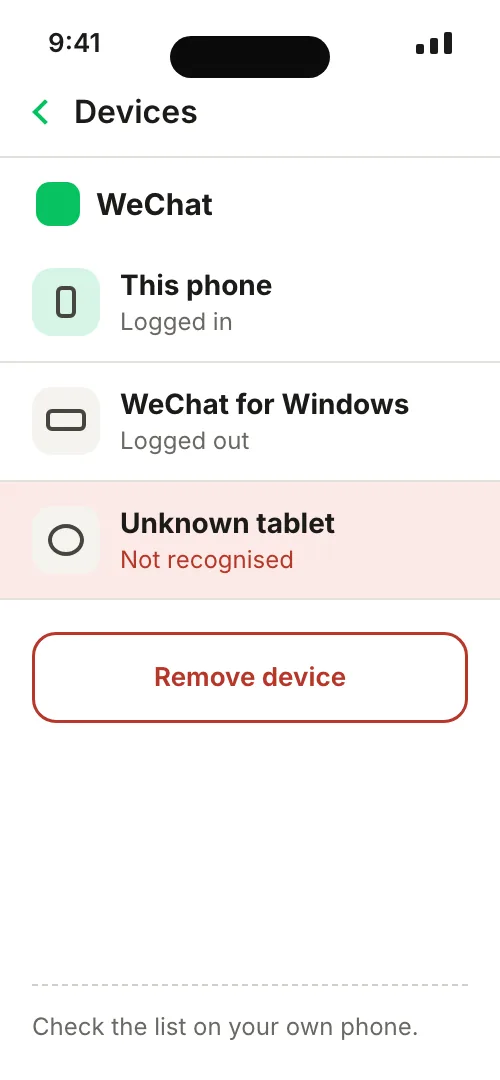
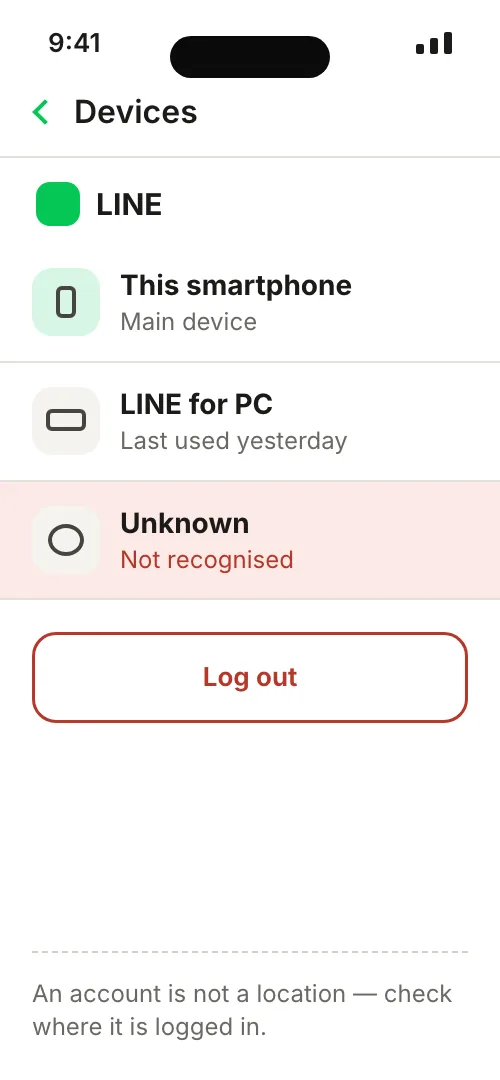
LINE for PC and iPad show your chats because they are logged in as you, and the first login on a sub device may ask for a verification code on the main phone. Every logged-in PC or iPad appears in Settings › Account › Devices on that main phone.
Do thisCheck Devices, log out anything unknown, and consider turning off Allow login.
State 3 of 5
That QR code logs a device in.
LINE's own sub-device login works by scanning a QR code shown on the new device with your main phone, then tapping Log in › Verify. A stranger's QR code is the same mechanism pointed at the stranger's screen.
Do thisOnly scan a LINE login QR code that appears on a device you are holding.
State 4 of 5
Only what someone sends in a chat.
LINE lists location information among the things Letter Sealing encrypts when it is sent as a message. The separate “Share location with LINE” setting is consent for LINE's own notices, such as disaster alerts and weather, and you can switch it off under Settings › Privacy › Provide usage data.
Do thisAsk the person to send their location in a chat, or share yours with someone you trust.
State 5 of 5
Password, Allow login, Devices, then the phone.
LINE's own steps for a suspected takeover are to change your password, turn off Allow login, check which devices are logged in and log out of unfamiliar ones, and unsend messages you did not mean to send.
Do thisThen check Letter Sealing on your important chats, and the phone's app list if anything still looks wrong.
Verdict
Account is not location
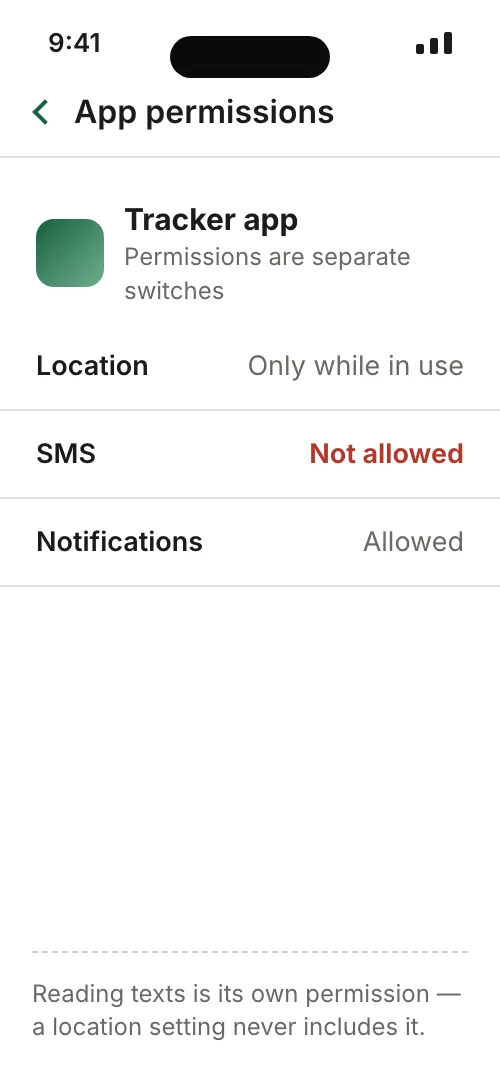
LINE account activity and a device's location are different things. A location permission on a phone gives a tracker nothing inside LINE. What matters is which devices are logged in to your account, whether Allow login is on, and who has your password or verification code.
Claim check
Messenger boundaries
− Read their chats with just a number
+ Chats reach another screen through the account's own logged-in devices, or software on the phone
Verified · October 2026
Against LINE Help Center, Apple, Google and the FTC
Why
A phone-location permission is not access to LINE chats. LINE says Letter Sealing, its end-to-end encryption, is on by default and keeps message content away from everyone outside the chat, including LINE itself. So the realistic way another screen shows your LINE is a logged-in sub device, such as a PC or an iPad. LINE lists those in Settings › Account › Devices, lets you log each one out, and lets you switch off Allow login so that LINE for PC or iPad cannot log in even with your correct email and password.
How to check · 7 steps
Seven checks inside LINE that answer a monitoring claim
0 of 7 done
- 01
Start with encryption
LINE describes Letter Sealing as encryption that stops anyone who is not a member of a chat, including LINE, from seeing the contents of its messages. It is turned on by default and there is no option to disable it. A service that claims to read your LINE text from a server is claiming something LINE says its own servers cannot do.
- 02
Confirm that Letter Sealing is active in a chat
Tap the top of a chat, then tap “This chat is protected with Letter Sealing” and compare the key fingerprints with your friend's device. LINE says matching fingerprints mean your messages are securely encrypted, and suggests comparing them face to face or over a channel you trust.
- 03
Open your device list
On your main phone, go to the Home tab › Settings › Account › Devices. LINE shows the name of each PC or iPad logged in to your account and how long it has been logged in. Tap Log out for anything you do not want there, then change your password if you do not remember logging in on it.
- 04
Decide whether sub devices may log in at all
In the same Account screen, LINE lets you turn Allow login on or off. LINE says that when Allow login is off, your account cannot be logged into with LINE for PC or iPad even if your email address and password are entered correctly.
- 05
Turn on two-factor authentication and fix weak passwords
LINE's page on unauthorized logins links them to easy-to-guess passwords and recommends changing a password that can be guessed or is reused elsewhere. Two-factor authentication is a switch under Home › Settings › Account.
- 06
Never hand over your verification code
LINE's scam guide says any attempt to ask for your LINE-registered information or verification code, or to make you enter it on a screen, is a scam. A “monitoring” service that asks for a code is asking to log in as you.
- 07
If someone has had the phone, check the phone as well
The FTC explains that stalkerware is installed on the device itself and is designed to avoid detection by the owner. LINE's settings will not reveal software installed outside LINE.
The responsible-use ladder
Illustration of where checking LINE is legitimate: your own Devices list and Allow login, a child's settings agreed openly, an adult's location only when they send it. Logging in as someone else is the stop line. Not a real interface and not legal advice.
- 1 · Your own Devices list and Allow loginOK
- 2 · A child's settings, agreed openlyOK
- 3 · An adult's location — only when they send itOK
- 4 · Logging in as someone elsethe stop lineSTOP
Edge cases · 6
What LINE's Help Center adds, and where it is silent
- 01
Not everything is end-to-end encrypted
LINE says Letter Sealing covers text, location, photos, videos, voice messages, files and 1-on-1 calls. Group voice and video calls, meetings, albums and notes get transport encryption only, and LINE notes media may not be encrypted on some app versions.
- 02
Some features run on LINE's servers
Read receipts, sticker permissions and message ordering are checked on LINE servers over an encrypted connection. URL previews are generated by LINE servers too, and you can turn previews off in settings. LINE says message content is not viewed in these steps.
- 03
Phishing detection changes encryption for links
LINE can warn you about known phishing links in chats. Its help page says that if you turn this setting on, Letter Sealing will no longer be applied to links, and the feature needs URL previews to be on.
- 04
A recycled phone number is not a takeover
In Hong Kong, Japan, Korea, Taiwan and Thailand, LINE explains that a cancelled number can be reassigned and registered by someone else. You are logged out, but LINE says that person has no access to your friends or chat history.
- 05
Someone you do not know in your friend list
LINE says a person whose number is saved in your contacts may appear as a friend automatically. That alone does not mean your account or a friend's account has been stolen.
- 06
No official LINE monitoring view
None of the LINE Help Center articles read for this guide describes a feature that lets a parent or anyone else read another account's chats. LINE's own login tools, the QR code and Allow login, both run from the account owner's main phone.
Compare · 3 options
Chats, logins and location on LINE
| Chats with Letter Sealing | Sub-device logins (PC, iPad) | Location | |
|---|---|---|---|
| Who can read it | Only the members of the chat | Whoever holds the logged-in device | The people you send it to |
| Can LINE's servers see the content? | No, LINE says under no circumstances | Not applicable | Encrypted when sent as a message |
| Where you check it | Chat › Letter Sealing key fingerprints | Settings › Account › Devices | Settings › Privacy › Provide usage data |
| How you stop it | Block the sender, so no new messages arrive | Log out the device, or turn off Allow login | Stop sending it, or switch the setting off |
| What protects it | Encryption that cannot be disabled | Password + two-factor authentication + Allow login | Your choice to send it |
| Does a phone's location permission reach it? | No — the content is sealed | No — a login is needed | No — it is sent as a message |
What to do instead
- 01Secure your own account
- Change a weak or reused password, turn on two-factor authentication, and review Settings › Account › Devices regularly.
- 02Close the sub-device door
- If you never use LINE for PC or iPad, turn off Allow login so those apps cannot log in to your account.
- 03Report harassment inside LINE
- Tap and hold a message and choose Report. LINE says the other user is not told, and the report includes the message and those around it.
- 04Seal-check your closest chats
- Compare Letter Sealing key fingerprints with the people you talk to most, face to face or over a channel you trust. Matching fingerprints mean the chat is securely encrypted.
The honest limit
A LINE ID, phone number or QR code from a stranger is not permission to enter an account. This guide covers your own LINE account and devices only.
A LINE ID or phone number is not a key to anyone's LINE. Letter Sealing keeps chat content from everyone outside the chat, LINE included, and cannot be switched off. A PC or iPad only gets in with your email and password or a QR code you scan with your main phone, and then it sits in your Devices list until you log it out. Switch Allow login off and LINE for PC or iPad cannot log in at all. Whatever a seller presents as proof came from one of those devices or from software installed on the phone, which the FTC describes as designed to avoid detection.
Official sources (checked October 2026)
Show 15 official pages
- LINE Help Center — About Letter Sealinghelp.line.me
- LINE Help Center — Checking what devices are logged in to your LINE accounthelp.line.me
- LINE Help Center — Allow login settinghelp.line.me
- LINE Help Center — Logging in/out of LINE on your sub devicehelp.line.me
- LINE Help Center — My LINE account was or may have been stolenhelp.line.me
- LINE Help Center — Preventing and responding to unauthorized LINE loginshelp.line.me
- LINE Help Center — LINE account-stealing and phishing scams to be aware ofhelp.line.me
- LINE Help Center — Notification messages from the LINE official accounthelp.line.me
- LINE Help Center — Detecting phishing sites (fraudulent websites) sent in chatshelp.line.me
- LINE Help Center — The message “You've been logged out of your account” suddenly appearedhelp.line.me
- LINE Help Center — Data collected from the “Share location with LINE” setting and its usagehelp.line.me
- LINE Help Center — Hiding/blocking/deleting LINE accounts you're friends withhelp.line.me
- LINE Help Center — Reporting harassmenthelp.line.me
- Google — Change app permissions on your Android phonesupport.google.com
- FTC — Stalkerware: What To Knowconsumer.ftc.gov
FAQ · 7 questions
Questions people ask
How long has my LINE been open on that PC?
The Devices screen on your main phone, under the Home tab › Settings › Account › Devices, shows each logged-in device's name and how long it has been logged in. Tap Log out next to any you don't want.
What does Allow login do?
It controls sub-device logins. LINE says that with Allow login off, your account cannot be logged into with LINE for PC or iPad, even with your correct email address and password.
Can I turn Letter Sealing off?
No. LINE says there is no option for disabling Letter Sealing, because it is a means of enhancing security. It is on by default.
Someone asked me for my LINE verification code. Is that normal?
No. LINE says any request for your registered information or verification code is a scam. The code is only for transferring your own account or changing your email or phone number.
I got a message that someone logged in on another device. What now?
LINE says that if you did not try to log in, someone may be using your email and password. Change your password, turn off Allow login and log out of unfamiliar devices.
How do I spot a fake LINE email or link?
LINE says its official emails come only from addresses ending in “@line.me”, and official sites basically end in “line.me”. Extra text after “line.me” in a link is a warning sign.
Someone else now has my old phone number. Can they read my LINE?
LINE says that in Hong Kong, Japan, Korea, Taiwan and Thailand a cancelled number can be reassigned and registered by someone else. You are logged out, but that person has no access to your friends or chat history.